How to Remove Hardcoded Subtitles from Any Video
What Are Hardcoded Subtitles and Why Are They Difficult to Remove?
Hardcoded subtitles, also known as burned-in or embedded subtitles, are text elements rendered directly onto the video pixels during encoding. Unlike soft subtitles stored in separate SRT or ASS files that viewers can toggle on and off, hardcoded subtitles become a permanent part of every video frame. This makes them impossible to disable through standard media player settings.
The challenge of removing hardcoded subtitles lies in the fact that the original background pixels behind the text are permanently overwritten. Traditional video editing approaches like cropping or blurring the subtitle area produce unsatisfactory results because they either reduce the visible frame or create obvious artifacts. The only effective solution is to reconstruct the missing background information, which is exactly what modern AI inpainting technology accomplishes.
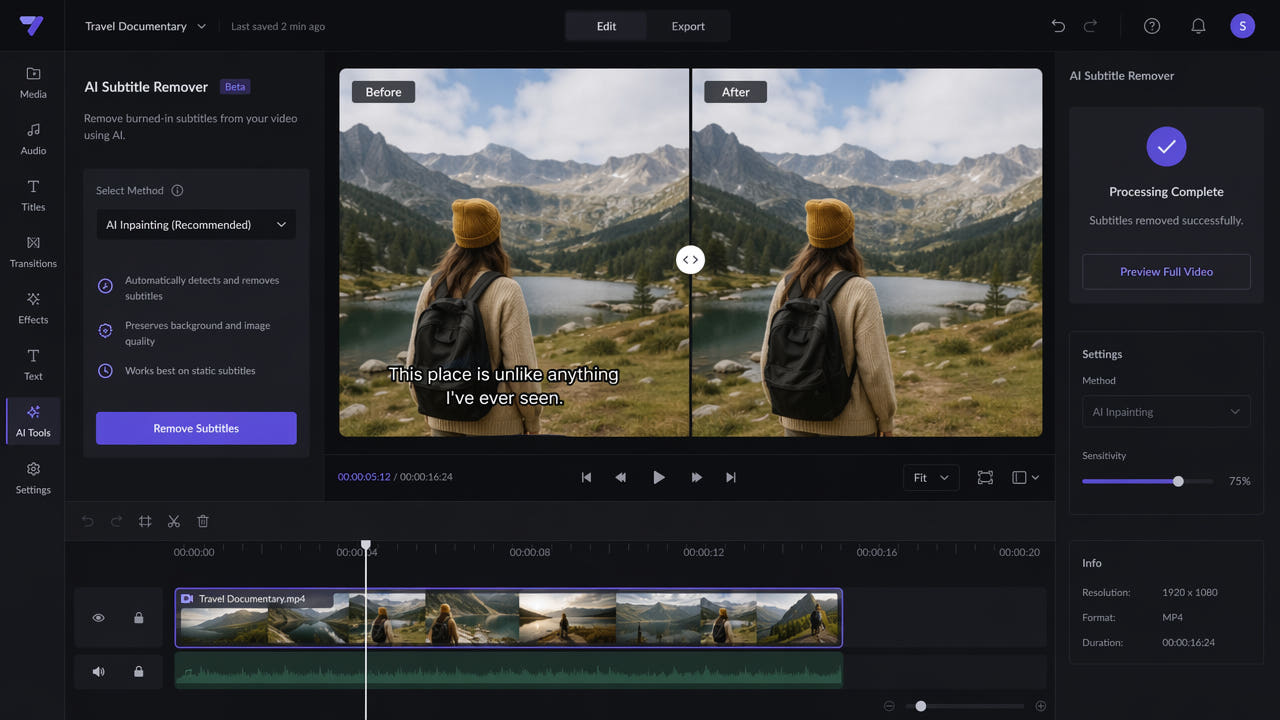
AI inpainting reconstructs background pixels behind burned-in subtitles, producing clean video frames without visible artifacts.
Content creators frequently encounter hardcoded subtitles when working with downloaded movies, foreign language films, social media clips from platforms like TikTok and Instagram, and screen recordings. Whether you need to replace subtitles with a different language translation, repurpose content for another platform, or simply want a clean video without text overlays, understanding how to remove these embedded subtitles is an essential skill for modern video editing workflows.
How AI Subtitle Removal Works: The Technology Explained
AI-powered subtitle removal uses a technique called video inpainting, which is a specialized form of generative AI trained to fill in missing or masked regions of an image. When applied to subtitle removal, the process works frame by frame across the entire video.
The Inpainting Process
First, the AI identifies the exact pixels occupied by subtitle text in each frame. This detection step uses optical character recognition combined with region segmentation to create a precise mask of the text area. Next, the inpainting model analyzes the surrounding context including colors, textures, edges, and motion patterns to predict what the background would look like without the subtitle overlay.
Modern inpainting models are trained on millions of video frames, giving them remarkable ability to reconstruct complex backgrounds including moving objects, gradients, and fine textures. The AI considers temporal consistency across frames to ensure the reconstructed area looks natural in motion, not just in individual still frames.
Why AI Outperforms Traditional Methods
Before AI inpainting became accessible, the common approaches to dealing with hardcoded subtitles included cropping the bottom portion of the frame, applying a blur or solid color overlay to the subtitle region, or manually painting over text frame by frame in software like After Effects. Each of these methods has significant drawbacks. Cropping reduces your video resolution and aspect ratio. Blurring creates an obvious distortion that draws viewer attention. Manual frame-by-frame editing is prohibitively time-consuming for anything longer than a few seconds.
AI inpainting analyzes surrounding pixels and temporal context to fill subtitle regions naturally, outperforming cropping and blurring methods.
AI inpainting solves all these problems simultaneously. It preserves the full frame resolution, produces natural-looking results that are often indistinguishable from the original background, and processes entire videos automatically without manual intervention on each frame.
Step-by-Step Guide: Remove Hardcoded Subtitles Using 550W Video Eraser
Follow these steps to remove hardcoded subtitles from any video file using the 550W AI-powered online tool. No software installation is required since the entire process runs in your web browser.
Step 1: Upload Your Video
Navigate to the 550W Video Eraser website and locate the upload area. Drag and drop your video file or click to browse your files. The tool accepts MP4 and MOV formats with a maximum file size of 300MB and maximum duration of 3 minutes per clip. For longer videos, split them into segments before uploading.
Step 2: Select the Subtitle Region
Once your video loads in the preview player, you will see the first frame displayed. Use your mouse to draw a rectangular selection box around the subtitle area. The selection should be tight around the text boundaries for optimal results. If your subtitles appear in a consistent position throughout the video, a single selection is sufficient. The tool remembers your selection coordinates for videos of the same resolution.
Step 3: Start AI Processing
After confirming your selection area, click the process button to submit the video for AI analysis. The cloud-based AI engine processes each frame individually, detecting text pixels and reconstructing the background. Processing speed depends on video length and resolution. A typical one-minute 1080p video completes in approximately 30 to 60 seconds. You can close the browser tab during processing and return later to check results.
Step 4: Preview and Download the Clean Video
When processing finishes, the result appears in your history panel. Use the built-in preview player to compare the original and processed versions. If the result meets your expectations, click the download button to save the subtitle-free video to your device. Results are stored for 24 hours before automatic cleanup, so download promptly.
Tips for Best Subtitle Removal Results
While AI subtitle removal works well in most scenarios, following these best practices will help you achieve the cleanest possible output.
Optimize Your Selection Area
The most important factor affecting removal quality is the precision of your selection box. Draw the box as close to the subtitle text boundaries as possible without cutting off any characters. A selection that is too large forces the AI to reconstruct more background area than necessary, increasing the chance of visible artifacts. Conversely, a selection that clips the text edges will leave partial characters visible in the output.
Consider Background Complexity
AI inpainting performs best when the background behind subtitles is relatively simple or consistent. Solid colors, gradual gradients, and repeating textures produce excellent results. Complex backgrounds with fine details, faces, or text behind the subtitles present more challenge. For difficult scenes, you may want to process shorter segments and verify quality before committing to the full video.
Handle Multiple Subtitle Positions
Some videos have subtitles that appear in different positions throughout the clip, such as speaker identification labels at the top and dialogue subtitles at the bottom. In these cases, you may need to process the video multiple times with different selection regions, or use a tool that supports multiple simultaneous selection areas.
For videos with subtitles that move or change size dynamically, frame-by-frame detection tools provide better results than static region selection. The 550W Video Eraser uses intelligent detection that adapts to subtitle position changes within your defined region.
Common Use Cases for Hardcoded Subtitle Removal
Understanding when and why to remove hardcoded subtitles helps you choose the right approach for your specific workflow.
Content Repurposing Across Platforms
Creators who produce content for multiple platforms often need to remove platform-specific subtitles before reposting. A TikTok video with auto-generated captions needs those captions removed before uploading to YouTube Shorts or Instagram Reels. Similarly, content downloaded from one platform may carry watermarks and subtitles that look unprofessional on another platform. Learn more about this workflow in our guide on removing TikTok watermarks for repurposing.
Video Translation and Localization
Professional translators and localization teams frequently need to remove original language subtitles before adding translated versions. This is especially common with Asian media content like anime, K-dramas, and Chinese short dramas that often ship with hardcoded subtitles in the original language. Removing these allows clean subtitle replacement in the target language without overlapping text.
Professional Video Editing
Freelance editors working with client footage sometimes receive videos with burned-in text that needs removal. This includes lower-third graphics, date stamps from security cameras, channel logos, and promotional text overlays. AI removal tools save hours compared to manual frame-by-frame editing in professional software.
Comparing Subtitle Removal Methods
Several approaches exist for dealing with hardcoded subtitles. Here is how they compare in terms of quality, speed, and cost.
AI Inpainting Tools (Recommended)
Online AI tools like 550W Video Eraser offer the best balance of quality and convenience. They produce natural-looking results, process videos quickly, and require no technical expertise. Most offer free trials with paid plans for regular use. This is the recommended approach for most users. For a detailed comparison of available tools, see our article on AI subtitle remover tools compared.
Manual Editing in After Effects or DaVinci Resolve
Professional video editors can use content-aware fill features in Adobe After Effects or similar tools in DaVinci Resolve. This approach offers maximum control but requires significant time investment and technical skill. It is practical only for short clips or high-budget productions where frame-perfect results justify the labor cost.
Cropping and Letterboxing
The simplest approach is to crop the subtitle area from the frame, often adding black bars to maintain the aspect ratio. While fast and free, this permanently reduces your video resolution and is immediately obvious to viewers. This method is acceptable only when subtitle removal quality is not a priority.
FFmpeg Delogo Filter
The open-source FFmpeg tool includes a delogo filter that can blur or remove static overlays. While free and scriptable for batch processing, the results are noticeably inferior to AI inpainting. The filter applies simple interpolation rather than intelligent background reconstruction, leaving visible smearing artifacts in most cases.
Frequently Asked Questions
Can hardcoded subtitles be completely removed from a video?
Yes. AI inpainting tools reconstruct background pixels behind text, producing clean results in most scenarios with simple to moderate backgrounds.
Does removing hardcoded subtitles reduce video quality?
Modern AI tools preserve original resolution and bitrate. Only the subtitle region pixels are modified while the rest of the frame remains untouched.
How long does AI subtitle removal take?
Processing time depends on video length and resolution. A one-minute 1080p video typically takes 30 to 60 seconds with cloud-based AI tools.
What is the difference between hardcoded and soft subtitles?
Soft subtitles are separate text tracks you can toggle off. Hardcoded subtitles are burned into video pixels and require AI tools to remove.