How to Remove Captions from Instagram Reels
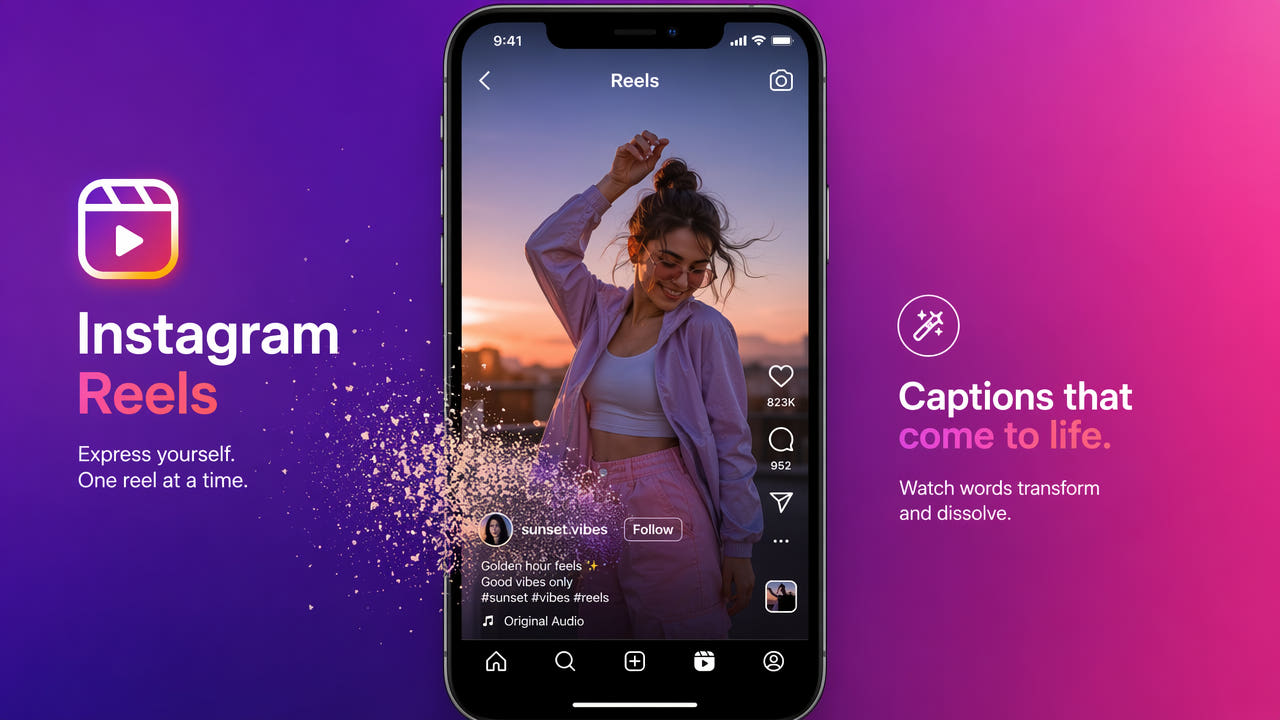
Understanding Instagram Reels Auto-Captions
Instagram Reels offers an auto-caption feature that generates text overlays from spoken audio in your videos. This feature improves accessibility and boosts engagement since many users watch Reels with sound off. However, when you download a Reel that has captions enabled, Instagram permanently embeds those captions into the video file as burned-in text overlays.
Unlike soft subtitles that exist as separate data tracks, Instagram's auto-captions become part of the video pixels themselves during the download or save process. This means standard video players and editing software cannot toggle them off. The captions are visually rendered onto every frame where speech occurs, making them a permanent part of the visual content.
Instagram auto-captions are permanently burned into downloaded Reels and require AI inpainting tools to remove cleanly.
This creates problems for creators who want to repurpose their Reels content on other platforms, use clips in professional presentations, or simply prefer a clean video without text overlays. The Instagram caption style with its distinctive font and background is immediately recognizable, which can look out of place when content appears on TikTok, YouTube Shorts, or professional contexts.
Why You Might Need to Remove Instagram Captions
There are several common scenarios where removing burned-in captions from Instagram Reels becomes necessary for content creators and professionals.
Cross-Platform Content Distribution
Creators who distribute content across multiple platforms need clean source videos. Instagram-style captions on a YouTube Short or TikTok video signal cross-posted content, which algorithms may deprioritize. Removing captions allows you to add platform-native text that matches each destination's visual language and performs better with local algorithms.
Professional Portfolio Use
Freelance videographers and content creators often want to showcase their Reels work in professional portfolios or client presentations. Burned-in captions with Instagram's casual styling can detract from the professional appearance of the content. Removing them creates clean footage suitable for portfolio websites, pitch decks, and client deliverables.
Content Archiving
Some creators prefer to archive their video content without platform-specific overlays. A clean archive version without captions, watermarks, or platform branding serves as a master file that can be repurposed for any future use without the constraints of platform-specific text overlays.
Clean caption-free videos serve as versatile master files for portfolios, cross-platform posting, and long-term content archiving.
Translation and Localization
International creators or brands may need to remove English captions from Reels before adding translated subtitles in other languages. This is common for global brands that create content in one language and then localize it for different markets. Removing the original captions first prevents overlapping text in the final localized version.
Step-by-Step: Remove Captions from Instagram Reels
Follow this guide to remove burned-in auto-captions from your Instagram Reels using AI-powered subtitle removal technology.
Step 1: Download the Instagram Reel
First, save the Reel to your device. If it is your own Reel, use Instagram's built-in save feature by tapping the three-dot menu and selecting "Save to device" or "Download." For Reels from other accounts, you may need to use a third-party download tool. Ensure the download preserves the original video quality and resolution for best removal results.
Step 2: Upload to 550W Video Eraser
Navigate to 550W Video Eraser in your web browser. The tool works on desktop and mobile browsers without requiring any software installation. Upload your downloaded Reel by dragging it into the upload area or clicking to browse files. The tool accepts MP4 files up to 300MB and videos up to 3 minutes in length.
Step 3: Select the Caption Area
Once the video loads in the preview player, identify where Instagram's auto-captions appear. Instagram typically positions captions in the lower third of the frame with a semi-transparent background. Draw a selection rectangle that covers the entire caption area including any background styling. Be precise with your selection to minimize the area the AI needs to reconstruct.
Step 4: Process and Verify
Click the process button to start AI caption removal. The inpainting engine analyzes each frame containing captions and reconstructs the background pixels behind the text. Processing time varies based on video length but typically completes within 30 to 90 seconds for standard Reels of 15 to 90 seconds. Once complete, use the preview player to verify the captions have been cleanly removed without visible artifacts.
Step 5: Download the Clean Video
After confirming the removal quality, download the processed video to your device. You now have a caption-free version of your Reel ready for repurposing. Upload it to TikTok, YouTube Shorts, or any other platform, and optionally add new platform-native captions using each destination's built-in tools.
Tips for Best Results with Instagram Caption Removal
Instagram's caption style presents some unique challenges compared to other platforms. Follow these tips to achieve the cleanest possible results.
Account for Caption Background Styling
Instagram auto-captions often include a semi-transparent background box behind the text. When selecting your removal region, make sure to include this background element in your selection, not just the text itself. Leaving the background box visible after text removal creates an obvious artifact that looks worse than the original captions.
Handle Multi-Line Captions
Longer spoken phrases in Reels generate multi-line captions that occupy more vertical space. Your selection region should be large enough to cover the maximum caption height that appears anywhere in the video. Scrub through the video timeline to identify the longest caption block and size your selection accordingly.
Consider Caption Animations
Instagram captions often animate in with a fade or slide effect. During these transition frames, the caption may appear in slightly different positions or with partial opacity. AI inpainting tools handle these transitions well, but ensuring your selection region has a small margin around the text helps capture any animation overflow.
Process Before Adding New Effects
If you plan to add new captions, filters, or effects to the video after removal, always process the caption removal first on the raw downloaded file. Adding effects before removal can complicate the AI's ability to distinguish caption text from intentional visual elements, potentially reducing removal quality.
Instagram Captions vs. Other Platform Subtitles
Understanding how Instagram's caption system differs from other platforms helps you choose the right removal approach and set appropriate expectations for results.
Instagram vs. TikTok Captions
Both platforms burn captions into downloaded videos, but they use different visual styles. TikTok captions tend to be larger with bolder fonts and appear in the center of the frame. Instagram captions are typically smaller, positioned lower, and include a background box. The removal process is similar for both, but the selection region placement differs. For TikTok-specific guidance, see our article on removing subtitles from TikTok videos.
Instagram vs. YouTube Captions
YouTube handles captions differently from Instagram. YouTube's auto-generated captions are stored as separate subtitle tracks and are not burned into downloaded videos when you use YouTube's own download feature. This means YouTube captions typically do not require AI removal tools. However, if someone screen-recorded a YouTube video with captions visible, those would be burned in and require the same AI removal approach.
Manual Text Stickers vs. Auto-Captions
Instagram Reels also allows creators to add manual text stickers that are separate from auto-captions. These stickers can appear anywhere on screen with custom fonts, colors, and animations. Removing animated text stickers is more challenging than removing standard auto-captions because they may move, rotate, or change opacity throughout the video. Static text stickers respond well to AI inpainting, while heavily animated ones may require multiple processing passes.
Workflow: From Instagram Reel to Multi-Platform Content
Here is a complete workflow for taking an Instagram Reel and preparing it for distribution across multiple platforms with clean, professional presentation.
Phase 1: Clean the Source Video
Download the Reel and remove all platform-specific elements including auto-captions and any Instagram watermarks. This gives you a clean master file. Store this master file in your content archive for future use.
Phase 2: Optimize for Each Platform
From your clean master file, create platform-specific versions. For TikTok, add trending sounds or TikTok-native captions. For YouTube Shorts, add YouTube's auto-generated captions and relevant hashtags. For LinkedIn, consider adding professional context text or a branded lower-third graphic. Each version should feel native to its destination platform.
Phase 3: Schedule and Distribute
Use a content scheduling tool to stagger your posts across platforms. Avoid posting the same content simultaneously everywhere, as this can trigger duplicate content detection. Space posts 24 to 48 hours apart and customize descriptions, hashtags, and calls-to-action for each platform's audience and algorithm preferences.
This systematic approach to content repurposing maximizes the value of every piece of content you create while maintaining a professional, platform-native appearance everywhere your audience encounters your brand.
Frequently Asked Questions
Are Instagram Reels captions burned into the video?
Yes. When you download a Reel with captions enabled, Instagram renders the text directly into the video pixels, making them a permanent part of the file.
Can I turn off captions on someone else's Instagram Reel?
You can mute captions during playback on Instagram, but downloaded versions retain burned-in text that requires AI removal tools to eliminate.
What is the best tool to remove Instagram Reels captions?
AI inpainting tools like 550W Video Eraser produce the cleanest results by reconstructing background pixels behind the caption text automatically.
Does removing captions from Reels reduce video resolution?
No. AI tools preserve the original resolution and only modify pixels in the caption region while keeping the rest of the frame fully intact.